
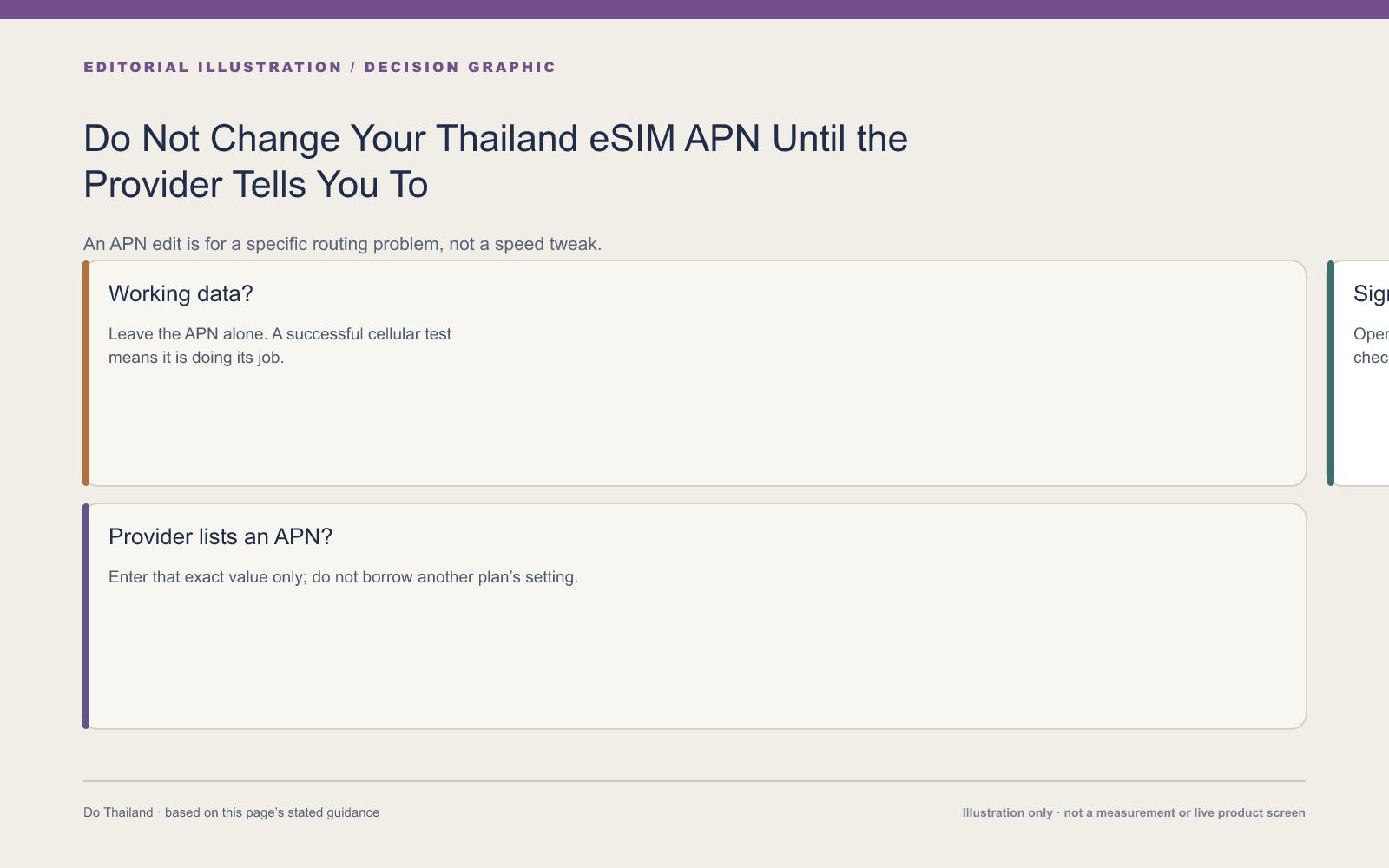
The decision in 30 seconds
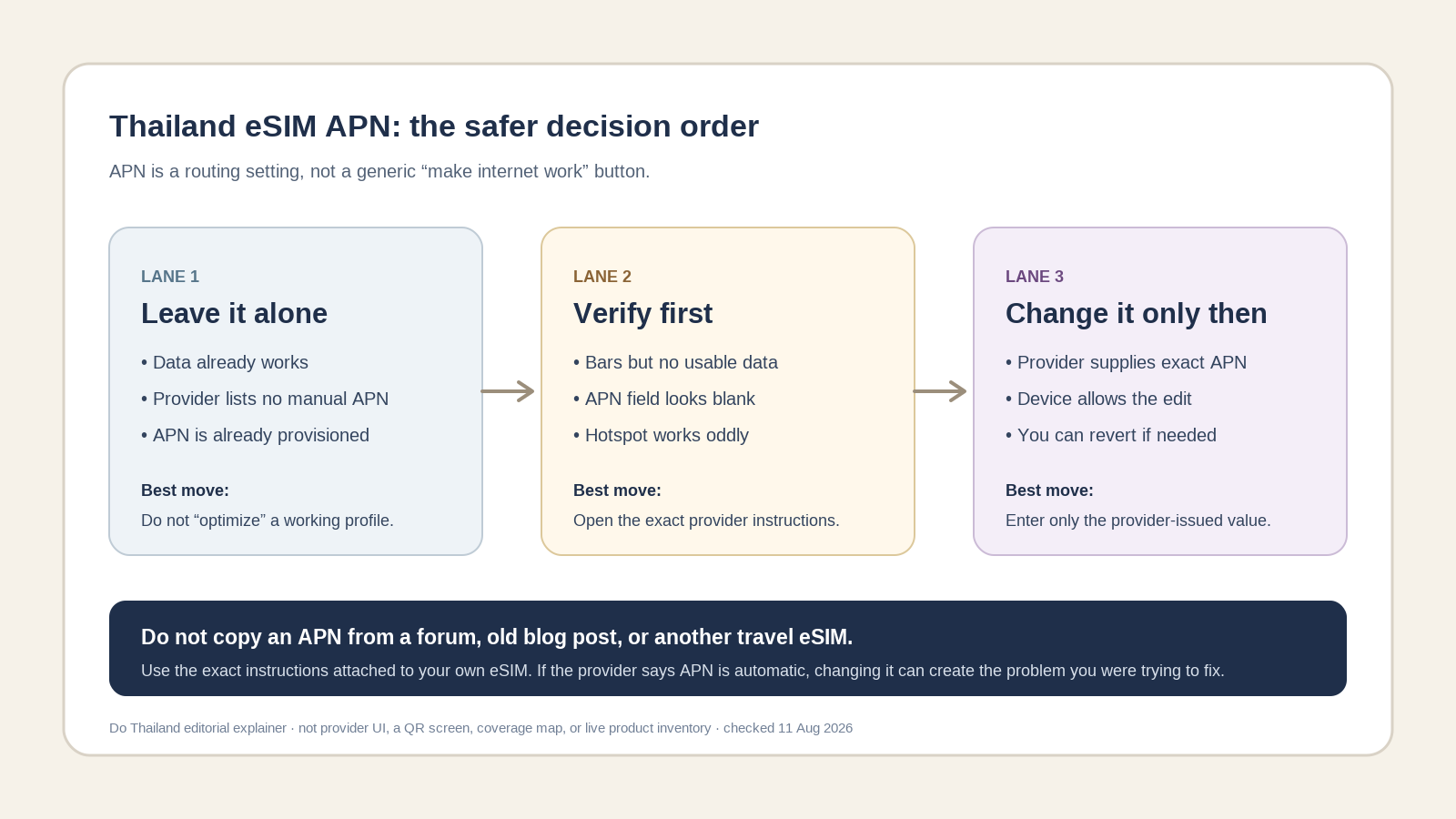
Leave it alone: your eSIM has usable cellular data, or the provider says the APN is configured automatically.
Verify it: you have signal but no usable internet, the APN looks missing, or hotspot behaves differently from phone data.
Change it: only after the exact provider instructions supply the APN value and your device allows the edit.
This page is narrower than the broader Thailand eSIM not-working troubleshooting guide. If you have No Service / SOS, the APN is not the first suspect because the phone may not be attached to a network at all. This guide is for the more specific question: when should I touch the APN, and when should I stop myself?
APN is a network route, not a speed setting
APN stands for Access Point Name. Apple describes it as the network path used for cellular data, and Google describes Access Point Names as the information that helps a carrier route the phone onto the right data network. That is why changing it can matter when the line has signal but cannot route data correctly.
It is also why APN should not be treated like a performance tweak. Changing the value does not magically improve Thailand coverage, give you more data, unlock 5G or repair a plan that has expired. If the underlying problem is the wrong data line, roaming disabled on the travel eSIM, an unsupported network, a carrier-locked phone or an exhausted package, an APN edit is solving the wrong problem.
Do nothing
If maps, messages and a browser work with Wi-Fi switched off, the APN is already doing its job. Do not edit a working setup because another traveler posted a different value.
Open the exact eSIM instructions
Check the provider app or help flow for your purchased profile. This is where you learn whether APN should be automatic, manually entered or repaired through the provider app.
Enter only that value
Use the APN attached to your exact eSIM. Do not substitute a Thai carrier APN, a different Airalo package, a regional eSIM value or a setting from an unrelated forum post.
Airalo and Saily currently handle this differently
Airalo: manual only when your eSIM instructions list an APN
Airalo’s current Help Center says some Airalo eSIMs require a manual APN and others configure it automatically. The practical clue is inside the eSIM’s connection instructions: if an APN is listed, enter it exactly as shown; if no APN is listed, Airalo says the eSIM is configured automatically and no APN action is required.
Airalo currently tells users who do need a manual value to enter the APN exactly as shown in the eSIM details and leave the other fields blank. The provider also recommends restarting the device if the connection does not appear immediately after the update.
Saily: Android can let the app repair a missing APN
Saily’s current activation guidance says that if the Saily APN is already present, the connection should establish shortly. On Android, if the APN is missing, Saily tells users to open the Saily app and leave it open for up to five minutes so the app can configure the APN automatically.
For iOS, Saily’s current guidance is more conservative: if the APN is missing or the connection still fails, contact support rather than inventing a manual value. That is a good example of why one generic “Thailand eSIM APN” string is the wrong mental model.
If you have not yet chosen a provider, keep this distinction in perspective. APN workflow is only one operating detail. The Airalo vs Saily Thailand guide compares activation, refill, profile reuse, hotspot and fair-use behavior as separate decisions.
Where to find APN on iPhone, Pixel and Galaxy
| Device family | Where the APN lives | What matters before editing |
|---|---|---|
| iPhone | Apple currently documents Settings → Cellular → Cellular Data Network, or the equivalent Mobile Data path where available. | Apple says you can only view/edit APN when the carrier allows it. If the menu is unavailable, follow the eSIM provider’s or carrier’s support instructions. |
| Google Pixel | Google places Access Point Names inside the SIM/mobile-network settings. Exact labels can vary with Android version. | Make sure you are editing the travel eSIM, not the home SIM. On a dual-SIM phone, the wrong profile can look deceptively similar. |
| Samsung Galaxy | Samsung currently documents Settings → Connections → Mobile networks → Access Point Names. | Samsung notes that APN details depend on the network operator. Treat the provider-issued details as authoritative rather than copying a generic mobile-data profile. |
Do not copy a Thai carrier APN just because your eSIM uses a Thai network
A travel eSIM can connect through a Thai partner network while still using the travel-eSIM provider’s own routing configuration. The network name you see on screen does not automatically tell you which APN to enter.
That distinction matters with products that roam onto partner networks. If Airalo tells your exact eSIM to use a specific APN, use that. If Saily says its app will configure the missing APN, let the app do that. Do not infer a manual value from the underlying Thai network name.
The safest troubleshooting order puts APN in the middle, not at the start
- Turn Wi-Fi off briefly. Otherwise airport or hotel Wi-Fi can make it look as if mobile data works.
- Confirm the travel eSIM is enabled and selected for cellular data. If you keep your home line active for bank codes, use the home-SIM + OTP setup guide so the home line does not quietly take the data job back.
- Check the roaming requirement for the travel eSIM. Provider roaming can be necessary even though you are trying to avoid home-carrier roaming.
- Open the exact provider connection instructions. This is the APN decision point.
- Only then change APN if the provider tells you to. If the provider says automatic, leave it automatic.
- Refresh the connection. Airplane mode or a normal restart is less destructive than deleting the eSIM or resetting every network setting.
This order is especially useful at an airport. At Suvarnabhumi, the practical goal is not to become a phone technician — it is to prove the connection before you need Grab, maps or hotel messaging. The BKK eSIM arrival check gives you the Wi-Fi-off cellular proof sequence; APN belongs inside that recovery process, not before it.
Hotspot is the one place APN can look “half fixed”
Phone data can work while hotspot still fails or behaves differently. Airalo currently notes that when an eSIM requires a manual APN, iPhone users may also need the same provider-issued value in the Personal Hotspot APN field. On Android, Airalo likewise instructs users to set the required APN before enabling hotspot/tethering.
If tethering matters because you are working from Thailand, check the remote-work hotspot guide. A successful browser test on the phone is not the same thing as a tested laptop connection.
What if you changed the APN and made things worse?
1. Stop changing fields
Do not keep trying random usernames, passwords, MMSC values or proxy settings. Return to the provider’s exact instructions and compare every field you touched.
2. Revert when the device supports it
Apple currently provides a Reset Settings option inside Cellular Data Network to restore the carrier/default APN information. Samsung also documents APN reset-to-default controls on supported Galaxy devices.
3. Escalate before deleting the eSIM
If APN repair does not restore data, use provider support before removing the profile. The delete/reinstall guide explains why deletion can create a second recovery problem.
Apple’s warning here is unusually clear: incorrect APN settings can cause cellular-data loss and may lead to extra charges. That is another reason to avoid “try this APN” advice from sources that do not know your exact eSIM.
APN will not fix these five problems
- Your phone is carrier-locked or does not support eSIM. Use the Thailand eSIM compatibility check.
- The wrong SIM is selected for mobile data. Fix SIM routing first.
- The travel eSIM requires roaming and roaming is off. Apply the provider’s required roaming setting on the travel line.
- Your plan is expired, exhausted or otherwise not usable. APN cannot create entitlement that the plan no longer has.
- The provider has a support-side issue. If the settings match the official instructions and cellular data still fails, move to support rather than endless phone changes.
No-buy state: if data works, your APN problem is over
If you can switch Wi-Fi off, load a fresh webpage, open maps and send a message over cellular data, stop troubleshooting. You do not need a “better” APN and you do not need another eSIM just to prove that the first one is valid.
If the plan still cannot be made usable after following the exact provider instructions, use the Thailand eSIM refund/support guide before paying twice. If you have not bought anything yet, start with eSIM vs airport SIM and installation/activation timing rather than troubleshooting a purchase you do not have.