
The five-minute rule: fix the route before you replace the plan
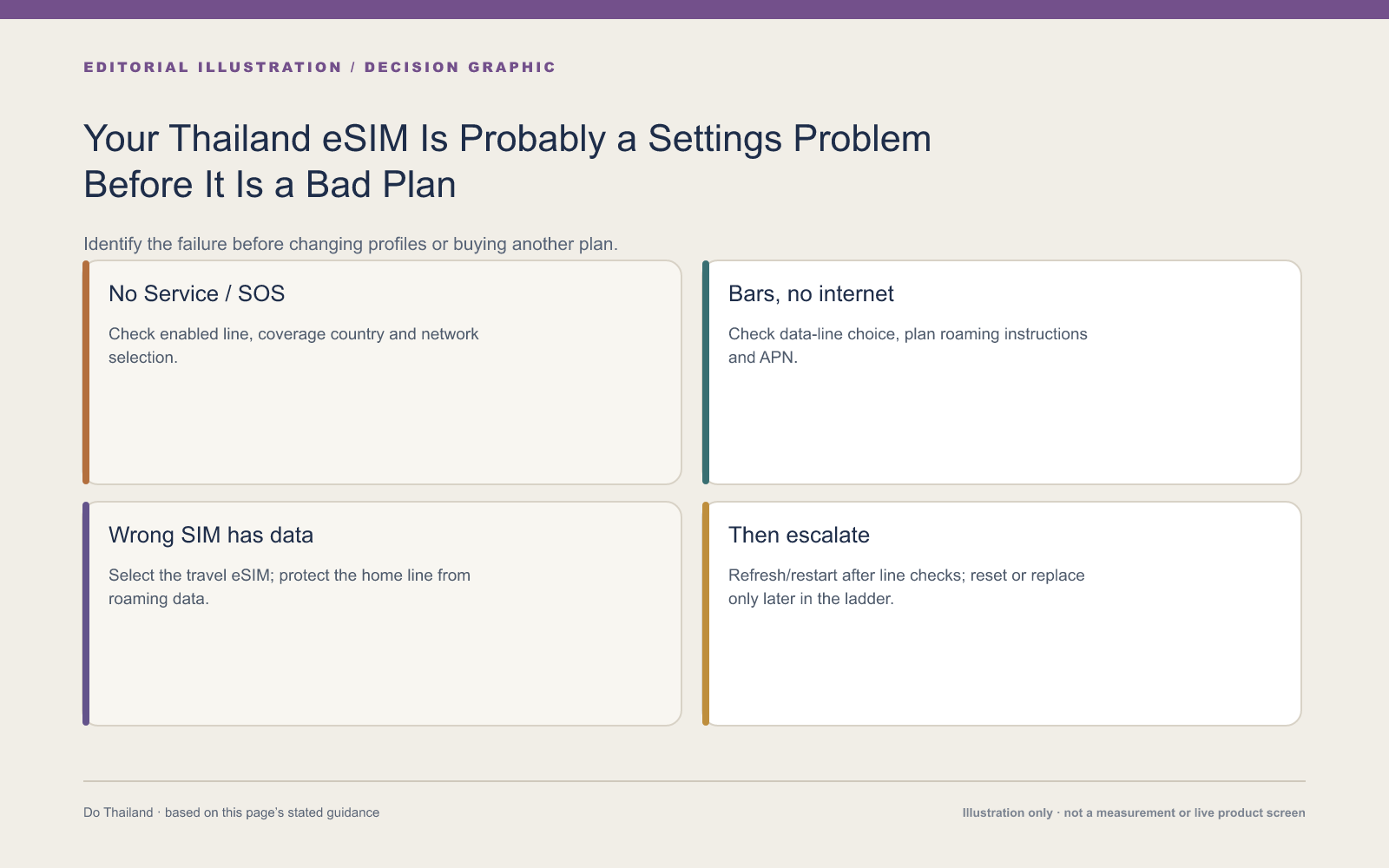
Bars but no internet? Check which SIM is carrying mobile data, then check the provider’s APN and roaming instructions.
No Service or SOS? Confirm the eSIM is enabled and in its coverage country, then try the supported network, airplane mode and a restart.
Your home SIM still has data? The travel eSIM may be installed perfectly but not selected as the data line. Fix that before troubleshooting the network itself.
If you have not bought a plan yet, this is the wrong page to start with. Read Thailand eSIM vs airport SIM first. If the plan works but you are worried about running out, use how much data you need in Thailand. This guide is specifically for the annoying middle case: you already paid, you already landed, and the phone is not giving you usable data.
First identify which failure you actually have
No Service / SOS
The phone is not attaching to a usable mobile network on that eSIM. Start with line status, coverage area and network selection.
Signal bars, no internet
The line may be attached to a network but not routing data correctly. Data-line choice, roaming and APN are the useful checks.
Internet works on the wrong SIM
The travel eSIM may be fine. Your phone is simply still sending cellular data through your home line, which also creates a roaming-cost risk.
This distinction matters because repeatedly reinstalling an eSIM is a poor first move. Airalo’s current troubleshooting guidance starts with whether the eSIM is installed, switched on and selected for data, then moves through APN, roaming and network selection. Saily’s current support flow follows the same broad logic: confirm the plan is active, the eSIM is enabled and preferred for data, roaming is set correctly, then move to network/APN troubleshooting.
Work through this ladder in order
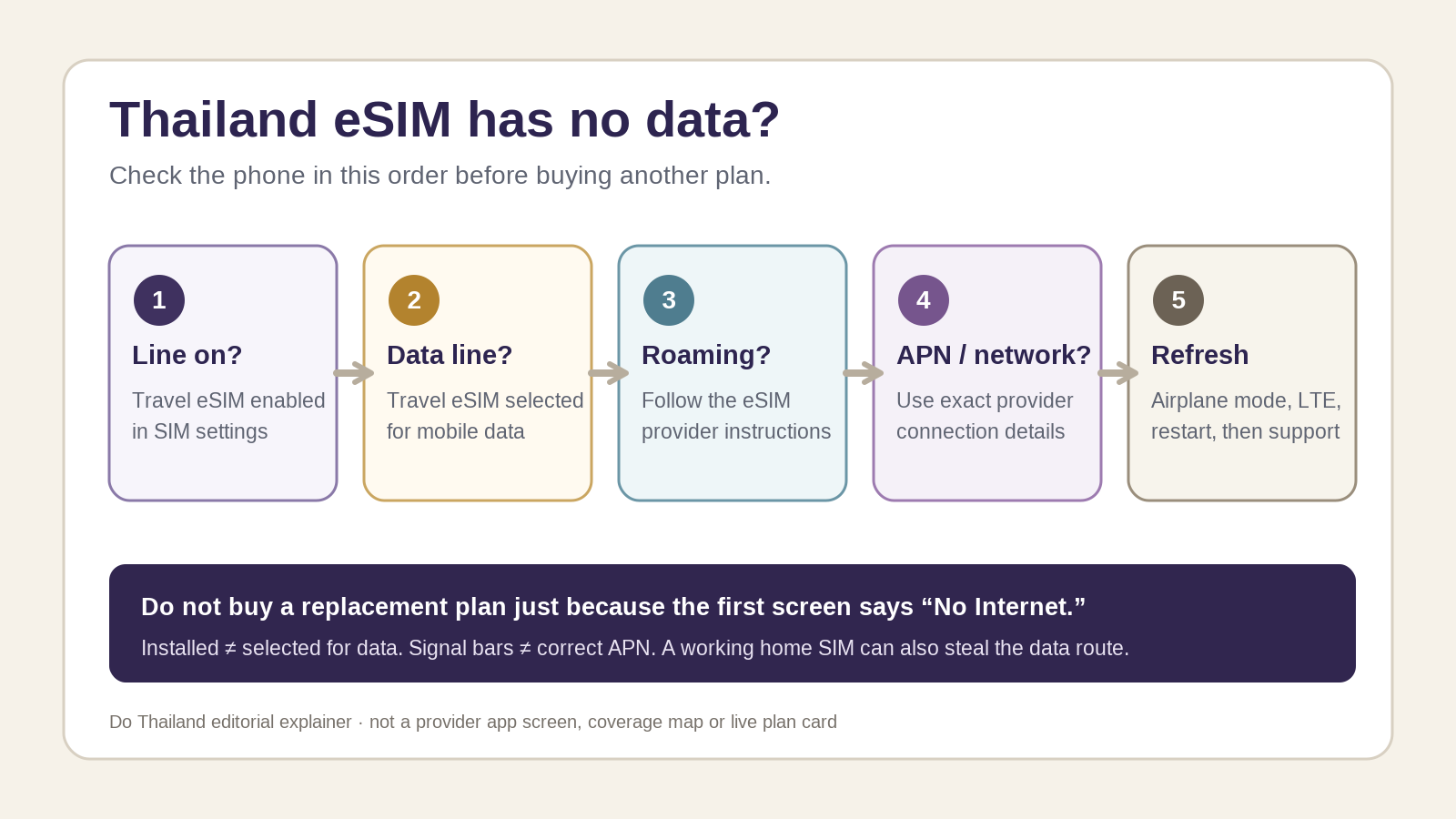
Turn Wi-Fi off for one minute and confirm the travel eSIM is actually enabled
Airport or hotel Wi-Fi can hide the problem. Turn Wi-Fi off briefly, open your phone’s SIM settings and check that the travel eSIM appears as an installed line and is switched on. If the eSIM does not appear at all, you have an installation/profile problem rather than a Thailand network problem.
Select the travel eSIM as the mobile-data line
This is the easiest mistake to miss on a dual-SIM phone. An iPhone can keep both numbers available while only one line provides cellular data at a time. Pixel phones likewise let you choose SIM preferences for data, calls and messages. Make sure the Thailand travel eSIM—not your home number—is the selected data line.
Use the roaming setting required by the travel-eSIM provider
Many travel eSIMs connect through partner networks and require Data Roaming on the travel eSIM. Airalo says some eSIMs require roaming and tells users to follow the plan-specific connection instructions; Saily’s current activation guide tells users to enable Data Roaming for the Saily eSIM. The important detail is which line is roaming. Keep roaming off on your home line unless your home carrier plan explicitly covers Thailand.
Check the APN and supported-network instructions attached to your exact plan
Do not copy an APN from a random forum or an old blog post. Airalo notes that some plans configure APN automatically while others require the exact value shown in that eSIM’s connection instructions. If automatic network selection attaches to the wrong network, Airalo also supports manually choosing one of the networks listed for that eSIM. Saily similarly includes APN and manual-network checks in its troubleshooting flow.
Refresh the radio before you reset everything
Toggle airplane mode, wait briefly, then reconnect. If 5G is unstable, both Airalo and Saily currently suggest trying a lower network mode such as LTE/4G during troubleshooting. A full phone restart is also reasonable. Leave a full network-settings reset until later because it can wipe saved Wi-Fi, VPN and APN configuration.
On iPhone, keeping your home number does not mean using your home data
iPhone / Dual SIM
Go to Settings → Cellular/Mobile Data. Confirm the travel eSIM is on, then open Cellular Data and choose it as the data line. Apple’s current Dual SIM guidance confirms that one cellular data network is used at a time. You can still keep your home number available for calls or messages if your carrier setup allows it.
Then open the travel eSIM itself and apply its required Data Roaming setting. For the home line, leave roaming off unless you knowingly bought home-carrier roaming for Thailand.
Pixel / Android
On Pixel, Google currently places the relevant controls under Settings → Network & internet → SIMs, including Mobile data, Roaming, network operator and Access Point Names. Other Android brands use different labels, so follow the provider’s device-specific path rather than forcing Pixel steps onto a Samsung or Xiaomi.
If two SIMs are active and you are unsure which one is carrying data, temporarily disabling the home SIM can remove ambiguity while you test the travel eSIM.
If you need bank OTPs, separate “keep the number” from “use the data”
You may want your home line left active for incoming SMS while the Thailand eSIM handles mobile data. That can be a sensible dual-SIM setup, especially when you are checking into hotels, logging into banking apps or confirming card transactions.
The risk is accidental home-carrier roaming. Keep the travel eSIM selected for cellular data and disable roaming on the home line unless you have intentionally bought a roaming plan. If your device or carrier combination makes the routing unclear, temporarily switch the home line off until the travel eSIM is stable.
Do not let a broken eSIM turn into a broken airport transfer
Connectivity problems feel much worse at an airport because mobile data is often part of the transport plan. If you are landing late at Chiang Mai, our Chiang Mai Airport late-arrival guide explains the trade-off between on-demand rides and a prebooked transfer. In Phuket, Phuket Airport to Patong matters differently from a tight Phuket Airport to Rassada Pier connection, where losing time to phone setup can eat into a ferry buffer.
The same logic applies in the south. A working map and messaging connection makes Krabi Airport to Ao Nang easier to coordinate, while Samui arrivals can compare the actual options in Samui Airport to Chaweng or Bophut. In Pattaya, a phone that can load the exact destination pin is useful when choosing between the shared local route and a Grab ride.
Use airport Wi-Fi as a repair tool
Do not spend the first ten minutes buying another plan. Use Wi-Fi to open the eSIM provider app/help page, check the exact connection instructions and message support if needed.
Screenshot the hotel pin before leaving Wi-Fi
Save the hotel name, Thai address if available, booking confirmation and pickup point. If data drops again outside, you still have enough information for a staffed taxi desk or driver.
For a tight connection, protect the connection first
If a pier, train or separate flight is the real risk, stop troubleshooting when it begins to threaten the transfer. Use the most reliable available transport fallback and fix the phone once you are no longer racing a departure.
Network reset is a last troubleshooting step, not the first
Both provider and device support pages include network resets as a possible fix, but the cost is easy to overlook. A reset can remove saved Wi-Fi networks, VPN settings and APN configuration. If you are standing in an airport and relying on Wi-Fi to access support, doing this too early can make the situation harder rather than easier.
I would try line selection, roaming, APN/network instructions, airplane mode, LTE/4G and a normal restart first. Use network reset only when you are comfortable rebuilding the affected settings.
When buying a replacement eSIM finally makes sense
A second plan becomes reasonable only when the first problem is no longer a settings mystery. Examples include: the provider confirms the plan cannot be used on your device or in your location; the plan has expired or has no usable data left; support confirms the profile cannot be recovered; or you deliberately want a second provider as a backup for a remote-work or time-critical trip.
If you merely see “No Internet” five minutes after landing, you are not there yet. If the line still cannot be recovered, check the separate Thailand eSIM refund and support decision before paying twice; it compares the current Airalo/Saily rules for unused, activated-but-mostly-unused and expired/consumed plans.
If you genuinely need a replacement plan, compare current Thailand options then
Do not buy another eSIM as a diagnostic test. If the original provider has confirmed that the plan cannot be made usable, compare a current Thailand plan and re-check the installation/activation rules before paying again.
The useful order is simple
Line on → travel eSIM selected for data → correct roaming setting → provider APN/network instructions → airplane mode/restart → support → replacement only if necessary.
That sequence is deliberately boring. It is also much cheaper than panic-buying a second plan while the first one is sitting in your phone waiting to be selected correctly.