
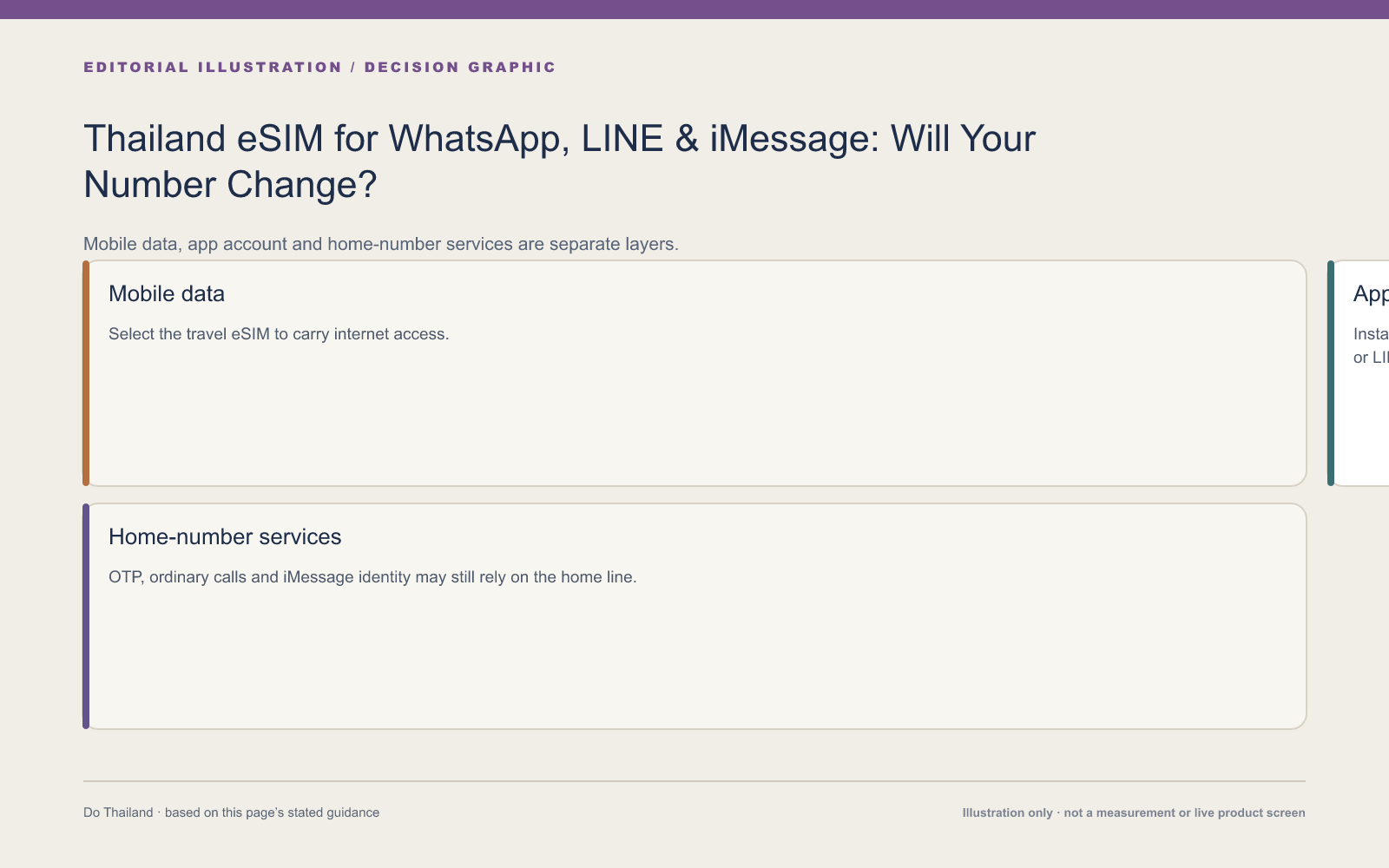
A Thailand travel eSIM does not, by itself, require a new WhatsApp or LINE account. Treat the travel eSIM as the internet pipe. Keep the messaging identity people already know unless you are genuinely changing your long-term phone number. On iPhone, choose the travel eSIM for cellular data, then verify which number/address iMessage and FaceTime are using.
This matters most on arrival days. You may be using WhatsApp for a hotel transfer, LINE for a friend or local contact, iMessage for family, and your home number for a bank OTP — all while you want maps and ride apps to use the Thailand eSIM. Those are separate jobs. Combining them into one vague idea of “the SIM” is how travelers accidentally change a setting they did not need to touch.
If you are still deciding whether you even need a Thai number, read Do you need a Thai phone number? first. Most messaging-heavy leisure trips do not need ordinary Thai voice/SMS simply to keep internet messaging working.
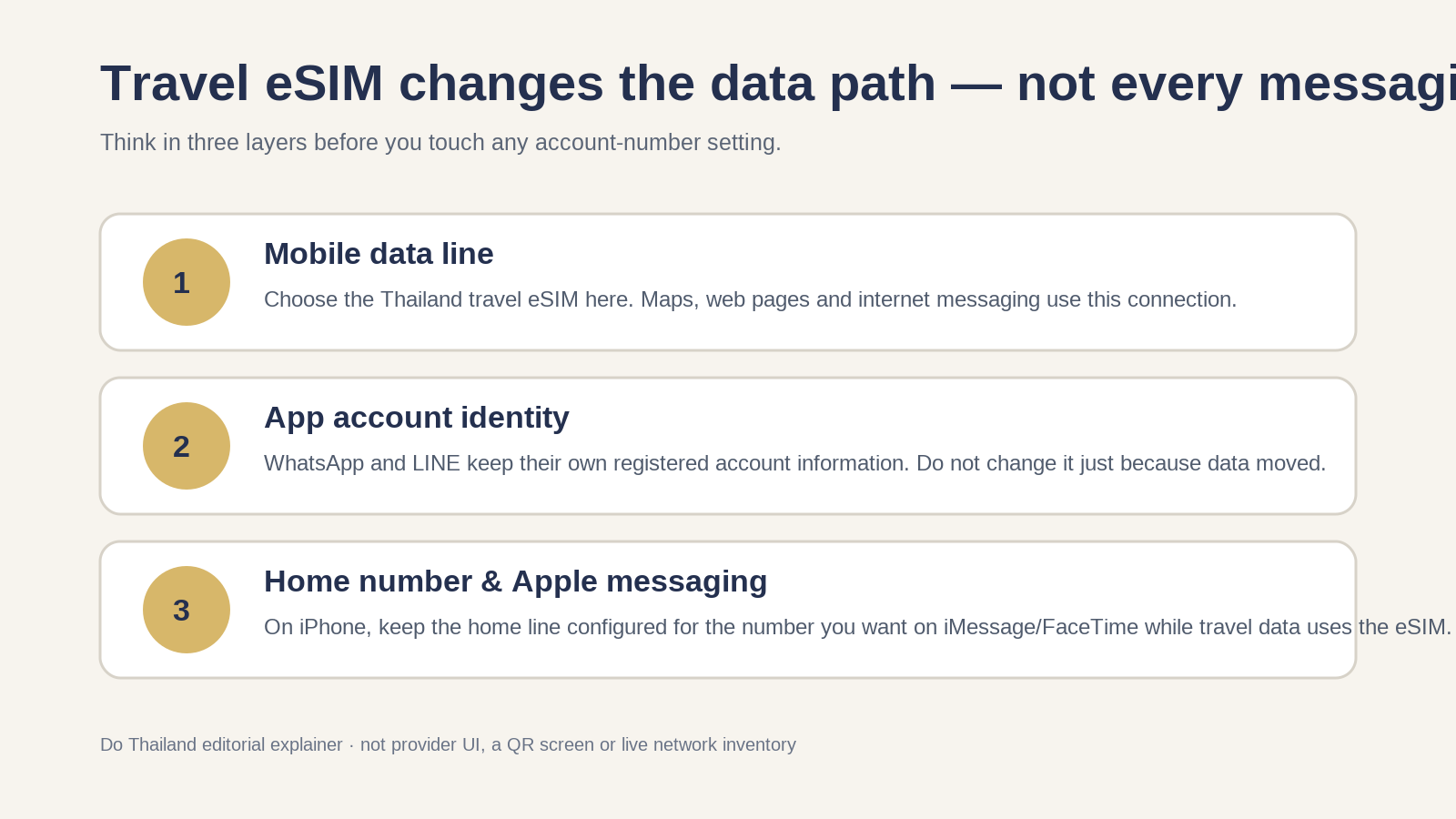
Think of the phone as three separate layers
1. Mobile data
This is the line your phone uses for internet access. In Thailand, it can be a travel eSIM while your home line remains present for other jobs.
2. App account
WhatsApp and LINE maintain account information of their own. Installing another SIM/eSIM is not the same operation as explicitly changing an app’s registered phone number.
3. Home-number services
SMS OTPs, ordinary calls and Apple messaging-number settings can still depend on the home line. Decide whether you need that line reachable before turning it off completely.
Apple’s current travel-eSIM guidance makes the separation unusually clear: on supported iPhones you can use a travel eSIM as a secondary line, manually choose it for cellular data, and continue using FaceTime, iMessage and other internet apps while traveling. Apple also warns that keeping both lines active can still create home-line roaming charges depending on the carrier and how the line is used.
That is why the safer workflow is not “turn everything on.” It is “assign each line one job.” The home-SIM + Thailand eSIM guide covers the OTP/roaming side in more detail.
WhatsApp: do not create a new account just because data moved
Meta’s current WhatsApp documentation shows that adding a second WhatsApp account is an explicit action: the second account needs a second phone number and a SIM, multi-SIM or eSIM setup, then you choose Add account inside WhatsApp. That is a different decision from installing a travel eSIM so your existing apps have internet access.
So if your goal is simply “keep using my existing WhatsApp while the Thailand eSIM supplies data,” there is no reason to add another WhatsApp account. Likewise, do not use a change-number workflow unless you are actually moving your WhatsApp identity to a new long-term number.
Before you fly, open your WhatsApp profile/settings and confirm which account you are actually using. That takes seconds and gives you a reference point if you become unsure after installing the travel eSIM.
LINE: the registered phone number changes only through an account action
LINE’s current Help Center lets users check the phone number registered to LINE under Home → Settings → Account. Changing that registered number requires an explicit phone-number change and verification by text message or phone call. In other words, merely adding a Thailand eSIM for mobile data is not the same thing as telling LINE to replace the registered number.
There is one important exception to the “leave it alone” advice: if you have actually cancelled or permanently changed the home phone number registered to LINE, do not ignore that forever. LINE warned in its May 7, 2026 guidance for users in Hong Kong, Japan, Korea, Taiwan and Thailand that a cancelled number can eventually be reassigned; if the new holder registers that number to LINE, the old account can become inaccessible. That is a real account-maintenance problem, but it is not caused by taking a short trip to Thailand with a travel eSIM.
For a normal holiday, the sensible move is simple: verify the registered LINE number before departure, leave it alone if your number has not actually changed, and avoid deleting/reinstalling LINE as a casual connectivity fix. LINE treats app reinstallation as an account-transfer situation with backup and recovery steps.
iMessage: data line and messaging number are related, but not identical
iMessage needs a little more care because it is integrated with iPhone’s cellular-line settings. Apple says Dual SIM can separate voice and data plans, and lets you choose a default cellular-data line independently from the numbers used for calls and messages. Its March 2026 international-eSIM guidance also says that when a travel eSIM is selected for data, iMessage and FaceTime can continue to work on the home line.
That does not mean you should ignore your settings. Before departure, check Settings → Apps → Messages → Send & Receive (menu wording can vary by iOS version/region) and note the phone number and Apple Account addresses you expect people to use. After the eSIM is active, recheck if a conversation starts sending from the wrong identity.
If preserving your home number for SMS matters too, keep the OTP setup guide beside this one. If your goal is to eliminate home-carrier roaming entirely, compare that setup with the Thailand eSIM vs roaming-pass decision rather than assuming every home line behaves the same overseas.
App-by-app: what changes when the Thailand eSIM becomes the data line?
| Service | What the travel eSIM can change | What you should normally preserve | When to take account action |
|---|---|---|---|
| The internet connection used to send/receive app traffic. | Your existing signed-in WhatsApp account. | Only when you intentionally want a second WhatsApp account or are genuinely changing the account number. | |
| LINE | The internet connection used by LINE. | The phone number/account information currently registered to LINE. | When your real long-term number has changed, or LINE requires account transfer/recovery. |
| iMessage / FaceTime | Which cellular line provides internet data. | The phone number/email identities you want enabled in Apple messaging settings. | When Send & Receive shows the wrong identity, or you intentionally change your primary number. |
| SMS / bank OTP | Usually nothing: these are tied to the receiving cellular number, not the travel-data connection. | The home line if you need texts to that home number. | When your carrier’s roaming rules or your security workflow require a different setup. |
A five-minute messaging audit before you board
Write down the home number you are preserving
This sounds obvious, but it gives you a simple anchor when the phone later shows two cellular plans, labels and numbers.
Check WhatsApp and LINE account information
Confirm you are signed into the accounts you expect. For LINE, check the registered phone number under Account. Do not start an account-transfer workflow merely because you are traveling.
Check iMessage Send & Receive
Note the number and email identities that are currently enabled. This is the fastest way to tell whether something genuinely changed later.
Install the travel eSIM at the right time
Use the installation-versus-activation timing guide so you do the risky setup while you still have reliable internet and support access.
Decide whether the home line stays on
If you need OTPs, ordinary calls or home-number continuity, you may keep it active while routing mobile data elsewhere. If you do not need it, a simpler setup may be safer — but carrier roaming rules still matter.
Landing in Thailand: change the data path, then test the apps
Turn on the travel eSIM according to its provider instructions.
Select the Thailand travel eSIM as the cellular-data line. Prevent unwanted automatic switching if that conflicts with your roaming plan.
Switch Wi-Fi off. Load a new web page and map so you know the travel line really has internet.
Send one WhatsApp/LINE/iMessage test without changing any registered account number.
If the eSIM itself will not connect, stop here and use the Thailand eSIM troubleshooting order. If APN is the suspected problem, use the narrower APN decision guide. Neither problem is a reason to change a WhatsApp or LINE account number.
And if the profile looks broken, do not delete it reflexively. The delete/reinstall guide explains why provider recovery rules should be checked before removing a paid eSIM.
Three prompts that deserve attention
“Do you want to add another WhatsApp account?”
Only continue if you intentionally want a second WhatsApp identity and have the separate number required for it. A Thailand data eSIM does not create that need by itself.
“Verify or change your LINE phone number”
Check whether your real registered number has actually changed. If not, do not invent a Thai number just to satisfy anxiety about the new eSIM. If you permanently cancelled the registered number, follow LINE’s official account-maintenance guidance rather than postponing it indefinitely.
iMessage starts a conversation from the wrong identity
Recheck Send & Receive and your Dual SIM line settings. Apple lets you separate the data line from the line used for messaging, but a multi-line phone is still capable of choosing a different sender than you expected.
Do you need to keep the home SIM switched on?
Not for ordinary internet access inside WhatsApp or LINE. The travel eSIM can provide the data connection. The reason to keep the home line available is usually something else: receiving SMS/OTP, taking a call to the home number, or preserving an Apple messaging configuration that depends on that line.
Keeping it active is not automatically free. Apple explicitly warns that when both home and travel lines remain on abroad, the home line can still incur roaming fees. The exact trigger depends on your carrier and plan, so use the home-carrier roaming comparison rather than copying someone else’s toggles.
When a travel eSIM is unnecessary
If your home carrier already gives you adequate Thailand data at a total cost you are happy with, or you will spend almost the entire trip on dependable Wi-Fi and can tolerate the gaps, you may not need another eSIM at all. WhatsApp, LINE and iMessage need an internet connection; buy another eSIM only if you need a separate data line.
If you do want a separate data line but have not chosen a provider, first confirm your device passes the eSIM compatibility and carrier-unlock check, then estimate your usage with how much Thailand data you actually need. Only after those two decisions does a provider comparison such as Airalo vs Saily for Thailand become useful.
If you are still at the earlier format decision, compare Thailand eSIM vs airport SIM. If a purchase later goes wrong, the refund/support decision guide keeps you from paying twice before checking whether the first plan can be recovered.
The setup I would use for a messaging-heavy Thailand trip
For a traveler who wants Grab/maps plus WhatsApp, LINE and iMessage, while still receiving bank OTPs to the home number, the cleanest architecture is usually:
- Thailand travel eSIM: cellular data.
- Home SIM/eSIM: retained only for the home-number services you actually need, with roaming exposure controlled according to your carrier.
- WhatsApp: keep the existing account unless you intentionally change numbers or add a second account.
- LINE: keep the registered number if it is still your real number; update it only as an account-maintenance action when that number genuinely changes.
- iMessage/FaceTime: verify Send & Receive and the intended home number/email identities after the travel line is enabled.
The useful mental model is simple: move the internet, not the identity. That one distinction prevents a lot of unnecessary account changes on the day you arrive.
Authoritative sources checked
- Apple Support — Use eSIM while traveling internationally with your iPhone, published March 10, 2026.
- Apple Support — Using Dual SIM with an eSIM, current 2026 guidance.
- Apple Support — About cellular data roaming options, current 2026 guidance.
- Meta — Multiple Accounts Coming to WhatsApp, official WhatsApp account/second-number setup documentation.
- LINE Help Center — Checking/changing your phone number, current guidance.
- LINE Help Center — Make sure your current phone number is registered to LINE, updated May 7, 2026.
- LINE Help Center — Reinstalling the LINE app.
Technical behavior can change with app and operating-system releases. Facts above were rechecked against current official documentation on August 11, 2026.